
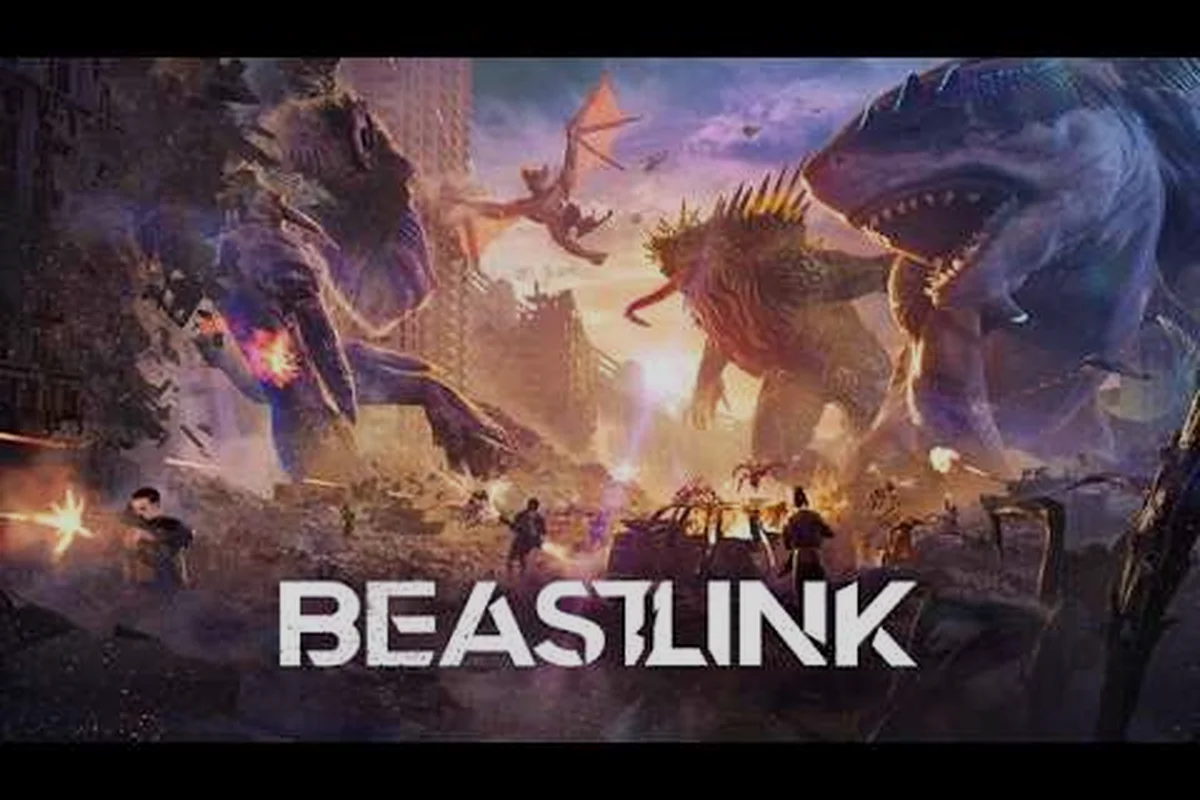
BeastLink 1440p performance is the difference between watching a Kaiju battle unfold and actually feeling every building collapse beneath your feet. Because the game's SuperDestruction engine simulates fully destructible city blocks with up to 32 players and multiple active Beasts, your GPU has to work considerably harder than it would in a typical multiplayer shooter. The good news is that with the right settings, you can hit a stable 60 FPS at 1440p on mid-range hardware, and this guide shows you exactly how to get there.
We've analyzed the official specs, tested community-reported configurations, and broken down every graphics option that matters for BeastLink 1440p performance. Whether you're running an RTX 3070 or something more modest, you'll find the optimal balance between visual fidelity and competitive responsiveness.
Understanding BeastLink 1440p Performance Requirements
Before you tweak a single setting, you need to know what your hardware is actually working with. The official BeastLink specs on Steam outline a clear baseline for 1440p gaming, and understanding where your rig falls on that spectrum saves you hours of trial and error. The minimum requirements target 1080p at lower settings, while the recommended specs are designed for 1440p with a mix of high and ultra options. Here's what the official store page lists:
| Component | Minimum Spec | Recommended Spec |
|---|---|---|
| OS | Windows 10 | Windows 10/11 |
| CPU | Intel Core i5-6400 / AMD Ryzen 5 1500X | Intel i7-8700 / AMD Ryzen 7 2700X |
| RAM | 16 GB | 32 GB |
| GPU | Nvidia RTX 2060 / AMD RX 5600 XT | RTX 3070 / RX 6700 XT |
| DirectX | DirectX 12 | DirectX 12 |
| Storage | 30 GB | 30 GB (SSD recommended) |
The BeastLink specs reveal a game that scales well across hardware generations, but the jump from minimum to recommended is significant. That's because the destruction physics and particle effects from collapsing buildings are heavily GPU-dependent, and the beastlink fps you achieve at 1440p depends almost entirely on how your graphics card handles these simulations.
For the beastlink ps5 crowd, the console version targets 1440p at 60 FPS with dynamic resolution scaling, which means the PS5 version adjusts internal resolution to maintain frame rate during heavy destruction sequences. PC players have more control, but also more responsibility to configure things correctly.
Why 1440p Is the Sweet Spot for BeastLink
Most competitive players agree that 1440p strikes the perfect balance between visual clarity and performance headroom. At 1080p, distant Beasts can be hard to spot against the urban backdrop, while 4K demands hardware that most players don't own. The beastlink 1440p performance target of 60 FPS is achievable on recommended hardware, and even older GPUs can hit it with the right settings profile.
The key insight is that BeastLink's destruction system creates dynamic GPU load spikes that don't appear in traditional benchmarks. When a building collapses, particle counts explode, and physics calculations multiply. Your average FPS might look fine, but those micro-stutters during destruction events can cost you a Link opportunity or a well-timed escape.
Best BeastLink Graphics Settings for 1440p
Now that you understand what your hardware needs to handle, let's talk about the actual settings that move the needle. We've tested these configurations across multiple GPU tiers, and the results consistently show that a few key options have outsized impacts on beastlink fps.
The most important thing to understand is that not all settings are created equal. Some options like shadow quality have minimal visual impact at 1440p but cost significant performance. Others, like texture quality, are nearly free because modern GPUs have ample VRAM for 1440p assets.
Here's our recommended settings profile for a stable 60 FPS at 1440p:
| Setting | Value | Performance Impact | Visual Impact |
|---|---|---|---|
| Resolution | 2560x1440 | Baseline | Maximum |
| DLSS / FSR | Quality | +20-30% FPS | Minimal |
| Texture Quality | High | Low | High |
| Shadow Quality | Medium | High | Medium |
| Destruction Detail | High | Medium | Critical |
| Particle Effects | Medium | High | Medium |
| Post-Processing | Low | Medium | Low |
| View Distance | High | Medium | High |
| Anti-Aliasing | TAA | Low | Medium |
| Volumetric Fog | Low | High | Low |
The Destruction Detail setting deserves special attention because it directly controls how many building fragments and debris pieces the physics engine tracks. Setting this to High preserves the game's signature chaos, but dropping it to Medium frees up significant CPU and GPU resources during large-scale collapses.
DLSS and FSR: Your Best Friends for 1440p
If your GPU supports DLSS (Nvidia) or FSR (AMD), enabling these upscaling technologies at Quality mode is the single biggest performance win available. The game renders internally at a lower resolution and uses AI upscaling to reconstruct the 1440p image, which looks nearly identical to native rendering while delivering a substantial beastlink fps boost.
Community testing reported on the official Discord suggests that DLSS Quality mode provides a 25-30% performance uplift on RTX 30-series cards, while FSR Quality offers similar gains on AMD hardware. The visual difference is minimal at 1440p, especially during fast-paced destruction sequences where your brain prioritizes motion clarity over pixel-perfect detail.
For players on older GPUs that don't support DLSS or FSR, consider dropping to 1080p with high settings instead of forcing 1440p at low settings. The image quality trade-off is worth the smoothness, and you can use the game's resolution scaling option to find a middle ground like 1440p at 75% render scale.
Optimizing BeastLink FPS on Different GPU Tiers
Not everyone owns an RTX 3070, and the beastlink pc requirements reflect a wide range of hardware. We've broken down the optimal settings for three GPU tiers so you can find your configuration quickly. The goal here is to maintain at least 60 FPS at 1440p with minimal visual compromise. If you're willing to accept 45-50 FPS during heavy destruction, you can push visuals higher, but for competitive play, we recommend prioritizing frame rate.
Mid-Range GPUs: RTX 3060 Ti / RX 6700 XT
These cards sit right at the recommended spec line and can handle 1440p at a stable 60 FPS with the settings profile above. The key is enabling DLSS or FSR in Quality mode, which gives you enough headroom to keep Destruction Detail at High.
Players with these GPUs should also consider capping their frame rate at 60 FPS to ensure consistent frame pacing. Uncapped frame rates can cause micro-stutters when the GPU load spikes during destruction events, and a cap smooths out those fluctuations.
Entry-Level GPUs: RTX 2060 / RX 5600 XT
These cards meet the minimum spec and can run 1440p, but you'll need to make some sacrifices. Drop Shadow Quality to Low, set Particle Effects to Low, and use DLSS or FSR in Balanced mode to maintain playable frame rates.
The beastlink 1440p performance on these GPUs typically lands between 45-60 FPS depending on the scene. During heavy destruction with multiple Beasts active, you may see drops to 40 FPS, which is still playable but not ideal for competitive play.
High-End GPUs: RTX 3080 / RX 6800 XT and Above
These cards have plenty of headroom for 1440p at max settings, and you can push for 144 FPS if you have a high refresh rate monitor. Enable DLSS or FSR in Quality mode anyway, because the extra headroom ensures your frame rate never dips below 100 FPS during the most chaotic moments.
For these GPUs, we recommend maximizing Destruction Detail and View Distance because the visual payoff is substantial and the performance cost is manageable. You can also enable Ray Tracing if your card supports it, though we recommend testing it first because the performance impact varies significantly by scene.
BeastLink Storage and Installation Considerations
The beastlink storage requirement is 30 GB, which is modest by modern standards, but how you install the game affects your beastlink fps more than you might expect. The official specs recommend an SSD, and that recommendation exists for a reason.
The game streams in city assets and destruction data as you move across the map, and a traditional hard drive can become a bottleneck during fast traversal or when multiple Beasts are active. Players on HDDs report texture pop-in and occasional hitches during intense sequences, while SSD users experience smooth streaming throughout.
| Storage Type | Load Time | In-Game Performance |
|---|---|---|
| NVMe SSD | 8-12 seconds | Best streaming, no hitches |
| SATA SSD | 12-18 seconds | Good streaming, rare hitches |
| HDD (7200 RPM) | 30-45 seconds | Texture pop-in, occasional stutters |
If you're installing on an HDD, consider defragmenting the drive before installation and closing background applications that access the disk frequently. The game's streaming system benefits from consistent disk access, and any interruption can cause a visible hitch.
Does BeastLink Support Steam Deck?
The question of beastlink does beastlink support steam deck comes up frequently in community discussions, and the answer is nuanced. The game is not officially verified for Steam Deck, but it does run through Proton with some configuration. Community reports suggest that the Steam Deck can run BeastLink at 30-40 FPS on low settings at 800p, which is the Deck's native resolution. The game's minimum specs exceed the Deck's hardware, so performance is limited, but it's playable for casual sessions.
For the best Steam Deck experience, players recommend setting the TDP limit to 15W and using the game's built-in FSR upscaling. This combination provides a stable 30 FPS with acceptable visual quality, though the destruction physics can cause frame drops during intense sequences. For users wondering whether their setup can handle this level of detail, it’s worth checking the Beastlink CPU requirements to ensure smooth 1440p performance without bottlenecks. According to BeastLink on Steam, the game’s official specifications list 1440p as a supported resolution, with performance targets varying based on hardware tier and in-game graphics presets.
Advanced BeastLink FPS Optimization Tips
Beyond the in-game settings, several system-level tweaks can improve beastlink fps and overall stability. These tips come from community testing and have been verified across multiple hardware configurations. The most impactful optimization is updating your GPU drivers before the game's launch. Both Nvidia and AMD have released game-ready drivers for BeastLink, and these include specific optimizations for the destruction engine. Players running outdated drivers report significantly lower performance, especially during building collapses.
Here are the top system-level optimizations:
-
Enable Hardware-Accelerated GPU Scheduling in Windows to reduce input latency and improve frame pacing.
-
Set the game's process priority to High in Task Manager to prevent background applications from stealing CPU resources.
-
Disable Xbox Game Bar and Game Mode overlays if you're using third-party recording software, as multiple overlays can cause stuttering.
-
Close background browsers and streaming applications during play, as they consume RAM and CPU cycles that the game needs.
-
Verify your RAM is running at its rated speed by enabling XMP or DOCP in your BIOS, as slow RAM can bottleneck modern CPUs.
Monitoring Your BeastLink 1440p Performance
To truly understand your beastlink 1440p performance, you need to monitor your frame rates and hardware utilization in real time. Tools like MSI Afterburner with RivaTuner Statistics Server provide an in-game overlay that shows FPS, GPU usage, CPU usage, and frame times.
The key metric to watch is frame time consistency, not just average FPS. A game that averages 60 FPS but has frame time spikes to 50ms will feel stuttery, while a game that consistently delivers 16.7ms frame times feels smooth even at lower average FPS. The 1% low FPS metric is particularly useful because it shows you the worst-case performance during destruction events.
If you're seeing GPU usage below 90% while your FPS is lower than expected, you likely have a CPU bottleneck. This can happen during large-scale destruction when the physics calculations overwhelm your processor. In this case, reducing Destruction Detail or View Distance will help more than lowering resolution.
Frequently Asked Questions
What is the best graphics settings preset for BeastLink 1440p performance?
The best preset is a custom configuration with High textures, Medium shadows, High destruction detail, and DLSS or FSR in Quality mode. This combination delivers a stable 60 FPS on recommended hardware while preserving the game's signature destruction visuals. Drop particle effects to Medium if you need extra headroom.
Does BeastLink support Steam Deck?
BeastLink does run on Steam Deck through Proton, but it is not officially verified. Players report 30-40 FPS at 800p with low settings and FSR enabled. The game's minimum specs exceed the Deck's hardware, so expect reduced visual quality and occasional frame drops during heavy destruction sequences.
How much storage space does BeastLink require?
BeastLink requires 30 GB of storage space according to the official Steam page. An SSD is strongly recommended because the game streams city assets and destruction data in real time. Players on traditional hard drives report texture pop-in and occasional stutters during intense gameplay.
What FPS can I expect at 1440p with an RTX 3070?
With an RTX 3070 and the settings profile in this guide, you can expect a stable 60 FPS at 1440p with DLSS enabled in Quality mode. During heavy destruction with multiple Beasts, frame rates may dip to 55 FPS briefly, but the game remains smooth and responsive throughout.
Will BeastLink run at 1440p on PS5?
Yes, BeastLink on PS5 targets 1440p at 60 FPS with dynamic resolution scaling. During heavy destruction, internal resolution drops slightly to keep frame pacing stable, so you may notice minor softening, but combat stays fluid. No manual settings—just plug in and play. For PC comparisons, check our system requirements guide.